Blog
December 29, 2024
Welcome to the world of UX/UI Design, where creativity and functionality combine ! Whether you are new to design or want to learn how digital experiences originate, this course will lead you through the fundamental principles and skills required to bring your ideas to life. UX/UI design is about creating effortless, engaging experiences for users making digital products not just visually appealing, but also easy to use.

The fundamentals : Begin with fundamental design ideas, such as Color theory, typography, balance, and Hierarchy. Step by step, build the foundation for your creative ideas !
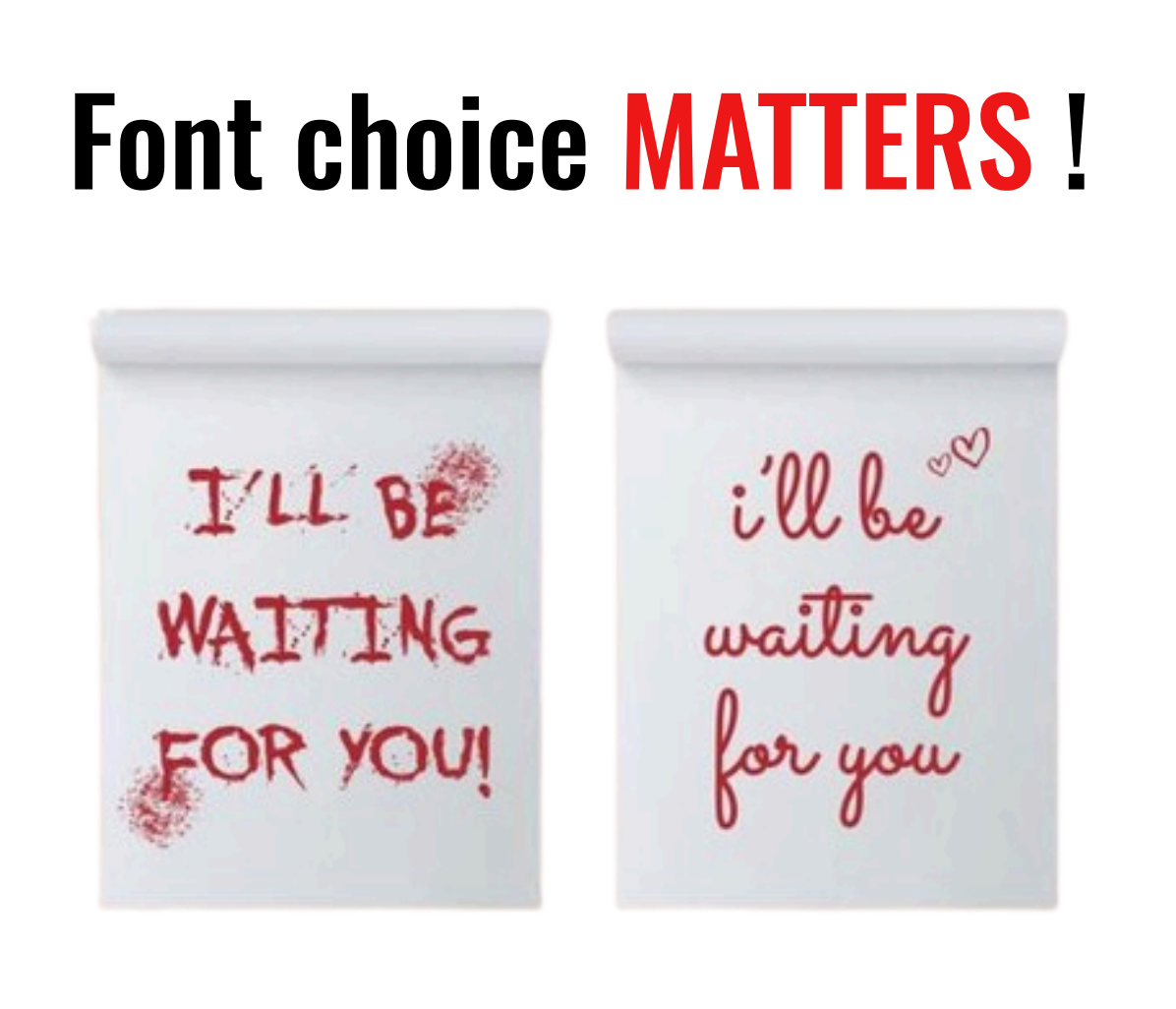
It's all about selecting the appropriate fonts, sizes, spacing, and alignment. These decisions influence how your text is understood and how it aligns with the message or brand. For example, a simple, modern font can give an innovative look, yet a traditional font can make the text appear more professional or serious.
There are two major types :
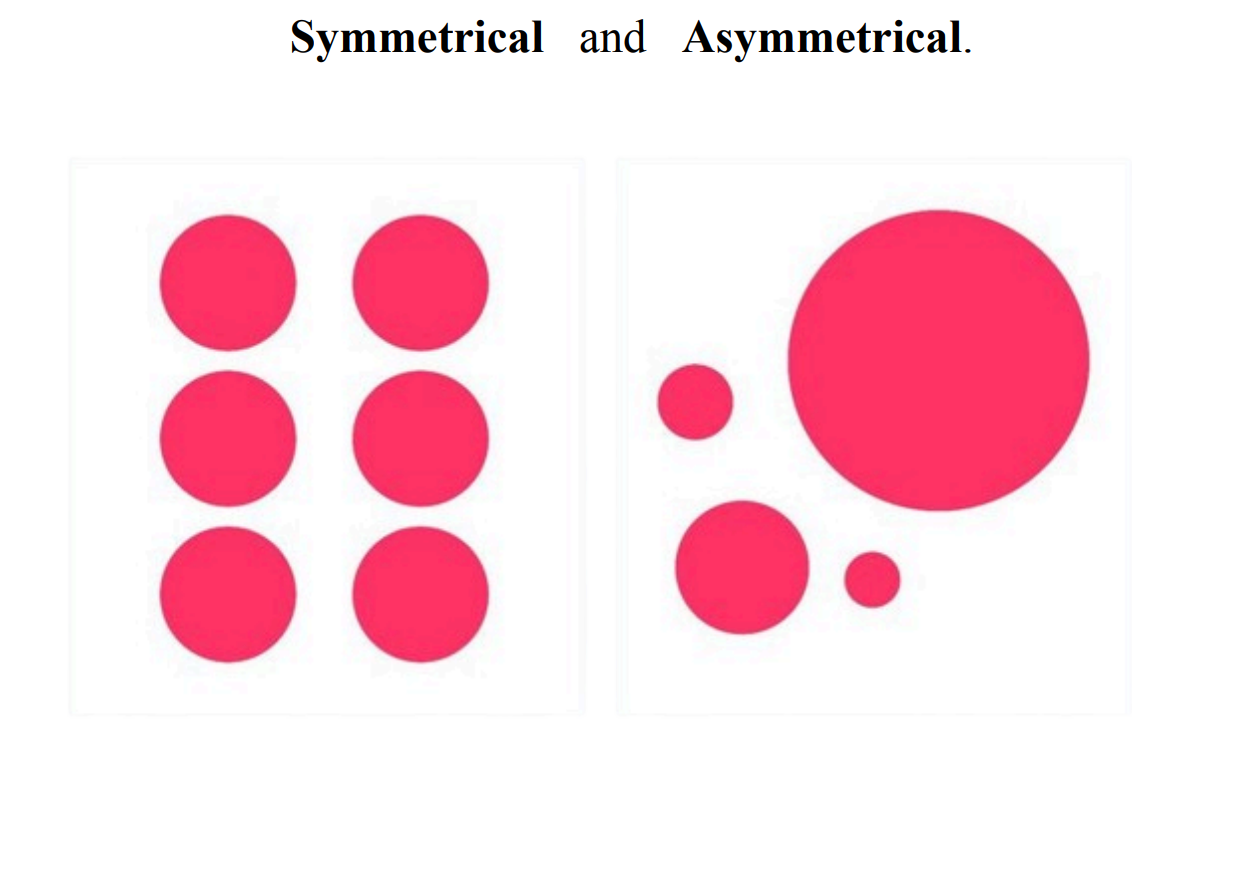
Symmetrical balance is similar to a mirror image.Think of a tree with equal branches on both sides. Asymmetrical balancing is more dynamic, such as using a large circle on one side and a smaller one with text on the other to maintain it balanced. A solid balance ensures that nothing is overly heavy or out of place, making the design simple to see.
Hierarchy, let me conclude with one of the most crucial parts in the fundamentals of design, which is hierarchy. As the name suggests, it simply refers to the placement of elements in a design to direct the viewer’s attention in an organized order.
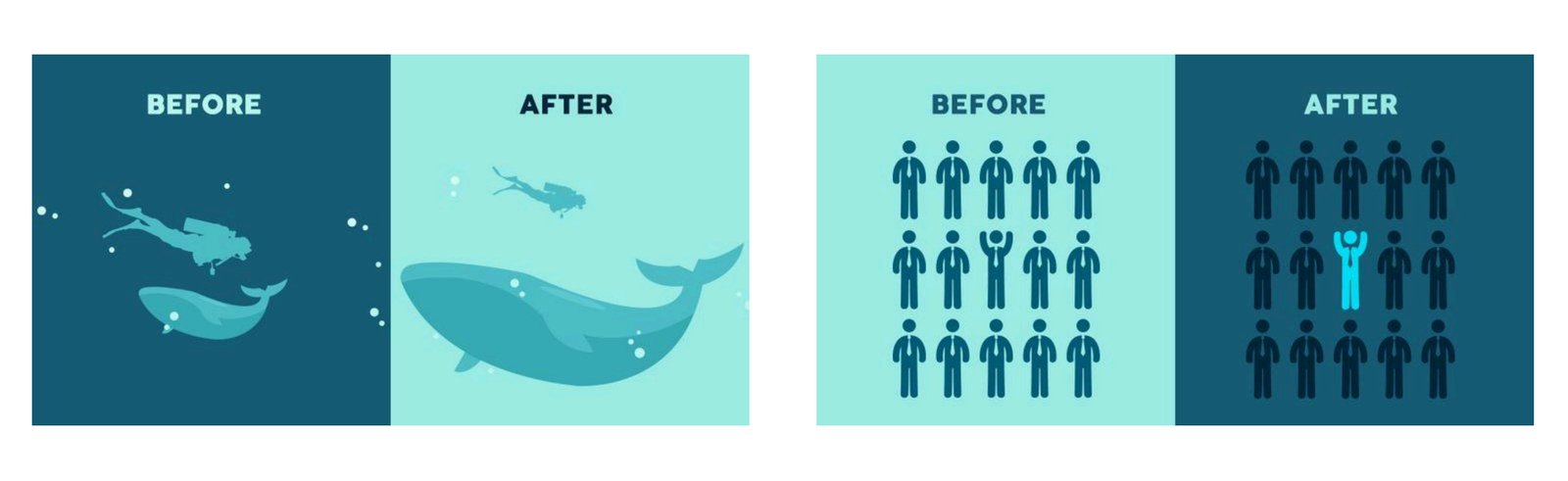
This principle helps to prioritize information through modifying element size, color, and placement. Larger and bolder elements tend to draw attention first, followed by smaller, less highlighted details. A designer uses hierarchy successfully to ensure that the most important messages are seen first and that the design is simple to navigate. This results in a better user experience and more effective visual communication.
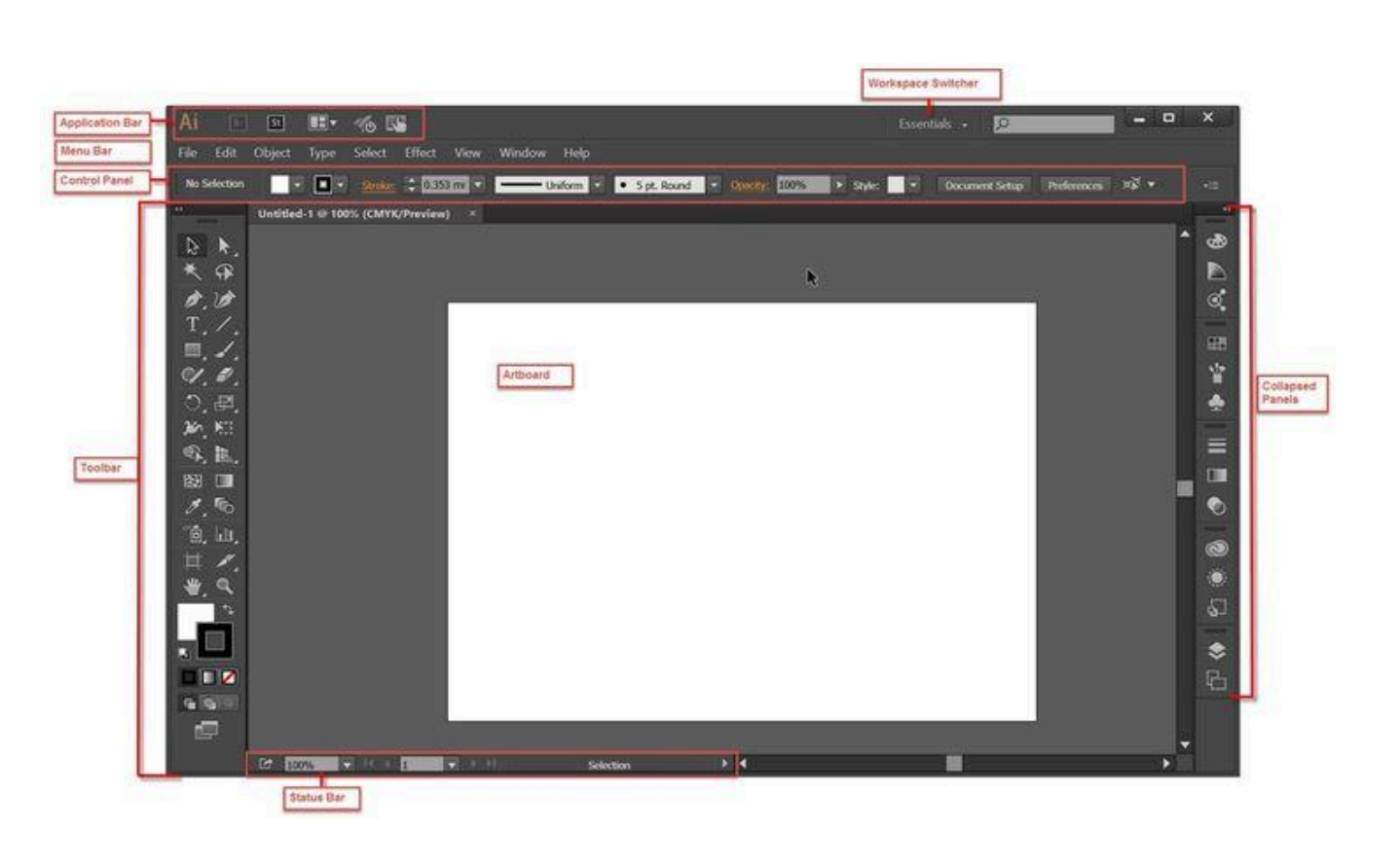
Workspace : Photoshop has a variety of panels and tools to let you create and edit photos. The tool panel on the left allows you to select tools like paintbrushes or an eraser for example. It helps you select instruments for painting, cropping, and drawing shapes. The right side, on the other hand, shows options for color, layer, and other settings. Layers enable you to layer components such as photographs, text, and drawings on top of one another.
Layers in Photoshop are like stacks of clear sheets. You can change one layer without changing the others.It makes modifications easier. If you’re making a poster, for example, one layer may be the background, another for the text, and another for a picture of a person.
Filters give creative effects to pictures, such as blurring and texture. They influence the overall appearance of an image. For example, use a blur effect on the background to make the topic in the foreground stand out more.
Color selectors and gradient tools can be used to modify colors. Gradients offer a smooth transition from one color to another. For example, use a gradient tool to create a smooth transition from blue to green, or choose vibrant colors like red and orange for a fiery look or style.
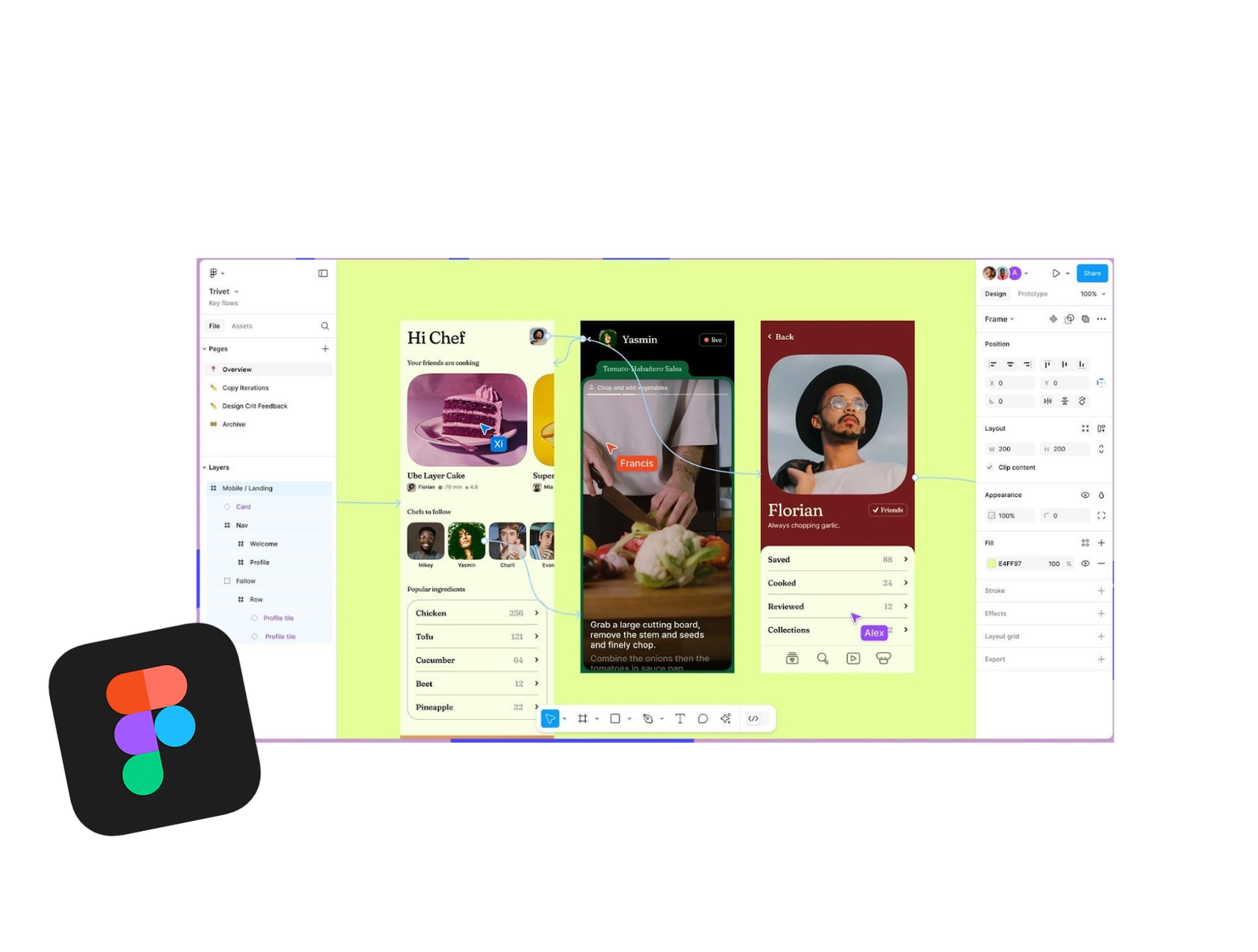
Figma's interface consists of a canvas where you create designs, a layer panel to organize your pieces, and a toolbar with shapes, text, and pens. On the right, there is a properties panel where you may change the size, color, and other settings. For example, if you want to create a button, you may use the shape tool to draw a rectangle on the canvas and then alter its size and color in the settings panel.
Core design tools: Figma provides different design tools such as shapes (rectangles, circles) and vectors (pen tool). The pen tool allows you to draw original forms, whilst the text tool allows you to add and change text in your design. You can use the shape tool to draw a circle for your profile photo, then use the text tool to add a name under it.
Prototyping in figma : Figma allows you to create interactive prototypes. You can connect frames (screens) together to make sure when you click a button, it leads you to another frame. You can also use auto layout, which automatically modifies items based on the content.
For example, if you're creating a mobile app prototype, tapping the "Next" button on the first screen will send you to the second screen. When you modify the wording, the button's position automatically adjusts.
Collaboration Features : Figma is ideal for team tasks. Many people can collaborate in real time on the same design, and feedback can be shared in the comments. You can rapidly share your creations with others by simply sending a link.If you're developing a website with a team, for example ,one person can work on the homepage while another edits the contact page, and both changes are made in real time.
Components and styles : Components are permanent design elements, including buttons and icons, that serve to maintain design consistency. You can create "master components" that are used in your design, and if you change one, all of its copies will update right away. For example, if you have a "Save" button, you can develop a component for it. Whenever you use it on different screens, changes like color or size will update across the entire project.
Plugins & Integrations : Figma includes plugins that can be used to add icons, generate content, and check for accessibility issues.
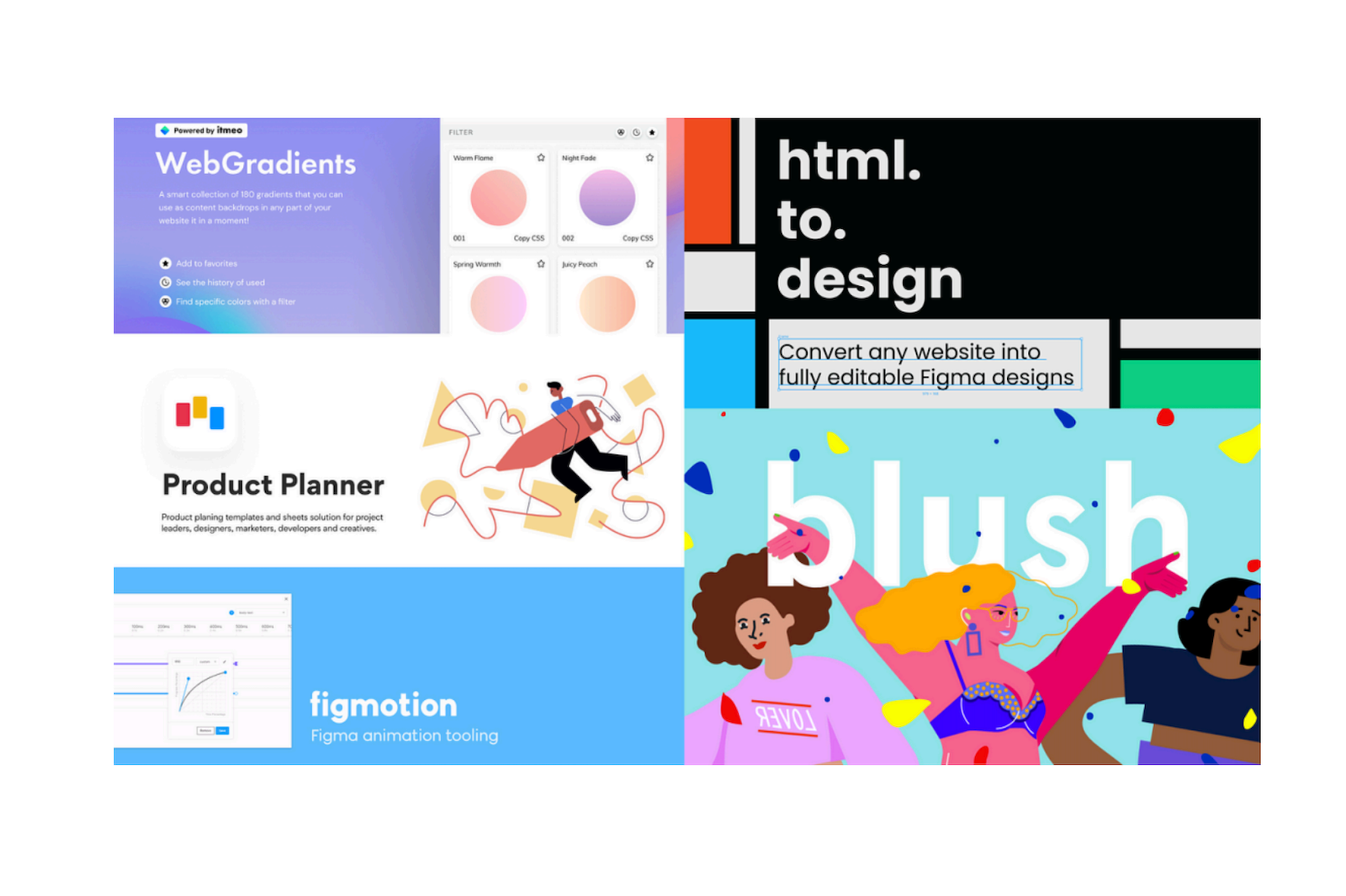
It also integrates with tools like Slack and Jira for team communication and task management. For example, if you need a set of icons for your design, you can rapidly add them using the "Iconify" plugin.
Keyboard shortcuts : Learning Figma keyboard shortcuts can assist you complete tasks more quickly. For example, pressing T selects the text tool, while R selects rectangles. Knowing these shortcuts allows you to work faster.
Instead of clicking the rectangle toolbar, you can press R to automatically choose the rectangle tool, making forms easier to design.
As your skills improve, you can try more complex approaches like Figma's creative animation tool, which creates smooth transitions between frames. You can also use boundaries to guarantee that your design adapts when resized. For example, when developing a responsive website, you can use constraints to make sure that a logo stays centered and scales properly when the screen size changes.
UI/UX Design in Figma : Figma works well for both wireframing and high-fidelity designs. To design a complex user interface, begin with simple wireframes and add colors, graphics, and text gradually.
First, make a wireframe of a website homepage using simple elements. To make the final version, replace the blocks with real images, text, and colors.
Staying Updated : Figma is constantly upgrading with new features. Keep an eye on the release notes to learn about new features and enhancements. Its community provides free tools such as UI kits and templates to help you get started. For example, if Figma releases a new animation plugin, you may learn about it in the release notes and use it to enhance the interactivity of your prototypes.

Wanna start learning UI/UX design from 0, with Awisso?
Join Now